Template function examples
This topic provides examples of how to use Replicated template functions in various common use cases. For more information about working with Replicated template functions, including the supported syntax and the types of files that support Replicated template functions, see About Replicated Template Functions.
Overview
Replicated template functions are based on the Go text/template library. All functionality of the Go templating language, including if statements, loops, and variables, is supported with Replicated template functions. For more information, see text/template in the Go documentation.
Additionally, Replicated template functions can be used with all functions in the Sprig library. Sprig provides several template functions for the Go templating language, such as type conversion, string, and integer math functions. For more information, see Sprig Function Documentation.
Common use cases for Replicated template functions include rendering values during installation or upgrade, such as:
- Customer-specific license field values
- User-provided configuration values
- Information about the customer environment, such the number of nodes or the Kubernetes version in the cluster where the application is installed
- Random strings
Replicated template functions can also be used to work with integer, boolean, float, and string values, such as doing mathematical operations, trimming leading and trailing spaces, or converting string values to integers or booleans.
For examples demonstrating these use cases and more, see the following sections.
Comparison examples
This section includes examples of how to use Replicated template functions to compare different types of data.
Boolean comparison
Use boolean values in comparisons to evaluate if a given statement is true or false. Because many Replicated template functions return string values, comparing boolean values often requires using the Replicated ParseBool template function to return the boolean represented by the string.
One common use case for working with boolean values is to check that a given field is present in the customer's license. For example, you might need to show a configuration option only when the customer's license includes a certain entitlement.
The following example creates a conditional statement in the Replicated Config custom resource. The statement evaluates to true when a specified license field is present in the customer's license and the customer enables a specified configuration option.
# Replicated Config custom resource
apiVersion: kots.io/v1beta1
kind: Config
metadata:
  name: config-sample
spec:
  groups:
  - name: example_group
    title: Example Config
    items:
    - name: radio_example
      title: Select One
      type: radio
      items:
      - name: option_one
        title: Option One
      - name: option_two
        title: Option Two
    - name: conditional_item
      title: Conditional Item
      type: text
      # Display this item only when the customer enables the option_one config field *and*
      # has the feature-1 entitlement in their license
      when: repl{{ and (LicenseFieldValue "feature-1" | ParseBool) (ConfigOptionEquals "radio_example" "option_one")}}
This example uses the following Replicated template functions:
- LicenseFieldValue
to return the string value of a boolean type license field named
feature-1noteThe LicenseFieldValue template function always returns a string, regardless of the license field type.
- ParseBool to convert the string returned by the LicenseFieldValue template function to a boolean
- ConfigOptionEquals to return a boolean that evaluates to true if the configuration option value is equal to the supplied value
Integer comparison
You can compare integer values using operators such as greater than, less than, equal to, and so on. Because many Replicated template functions return string values, you might need another function to return the integer represented by the string, such as:
- Replicated ParseInt,
which returns the integer value represented by the string with the option to provide a
baseother than 10 - Sprig atoi, which is equivalent to ParseInt(s, 10, 0), converted to type integer
A common use case for comparing integer values is to display different configuration options depending on values from the customer's license. For example, licenses might include an entitlement that defines the number of seats available to the customer. In this case, you can conditionally display or hide certain fields on the configuration screen depending on the customer's team size.
The following example uses:
- Replicated LicenseFieldValue template function to evaluate the number of seats permitted by the license
- Sprig atoi function to convert the string values returned by LicenseFieldValue to integers
- Go binary comparison operators
gt,lt,ge, andleto compare the integers
# Replicated Config custom resource
apiVersion: kots.io/v1beta1
kind: Config
metadata:
  name: config-sample
spec:
  groups:
  - name: example_group
    title: Example Config
    items:
    - name: small
      title: Small (100 or Fewer Seats)
      type: text
      default: Default for small teams
      # Use le and atoi functions to display this config item
      # only when the value of the numSeats entitlement is
      # less than or equal to 100
      when: repl{{ le (atoi (LicenseFieldValue "numSeats")) 100 }}
    - name: medium
      title: Medium (101-1000 Seats)
      type: text
      default: Default for medium teams
      # Use ge, le, and atoi functions to display this config item
      # only when the value of the numSeats entitlement is
      # greater than or equal to 101 and less than or equal to 1000
      when: repl{{ (and (ge (atoi (LicenseFieldValue "numSeats")) 101) (le (atoi (LicenseFieldValue "numSeats")) 1000)) }}
    - name: large
      title: Large (More Than 1000 Seats)
      type: text
      default: Default for large teams
      # Use gt and atoi functions to display this config item
      # only when the value of the numSeats entitlement is
      # greater than 1000
      when: repl{{ gt (atoi (LicenseFieldValue "numSeats")) 1000 }}
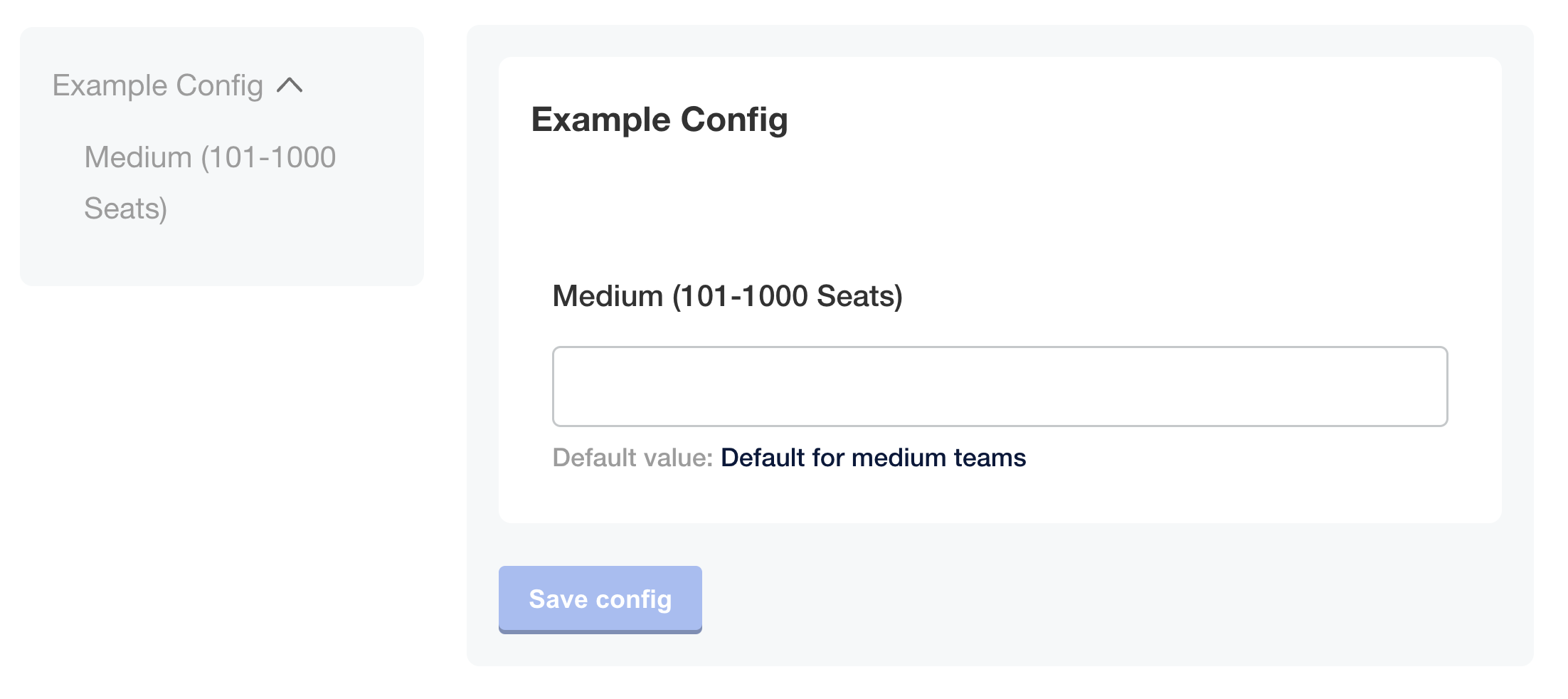
As shown in the image below, if the user's license contains numSeats: 150, then the medium item is displayed on the Config page and the small and large items are not displayed:
View a larger version of this image
String comparison
A common use case for string comparison is to compare the rendered value of a Replicated template function against a string. You can use this to conditionally show or hide fields based on details about the customer's environment. For example, use a string comparison to check the Kubernetes distribution of the cluster where the application runs.
The following example uses:
- Replicated Distribution template function to return the Kubernetes distribution of the cluster
- eq (equal) Go binary operator to compare the rendered value of the Distribution template function to a string, then return the boolean truth of the comparison
# Replicated Config custom resource
apiVersion: kots.io/v1beta1
kind: Config
metadata:
  name: config-sample
spec:
  groups:
    - name: example_settings
      title: My Example Config
      description: Example fields for using Distribution template function
      items:
      - name: gke_distribution
        type: label
        title: "You are deploying to GKE"
        # Use the eq binary operator to check if the rendered value
        # of the Distribution template function is equal to gke
        when: repl{{ eq Distribution "gke" }}
      - name: openshift_distribution
        type: label
        title: "You are deploying to OpenShift"
        when: repl{{ eq Distribution "openShift" }}
      - name: eks_distribution
        type: label
        title: "You are deploying to EKS"
        when: repl{{ eq Distribution "eks" }}
      ...
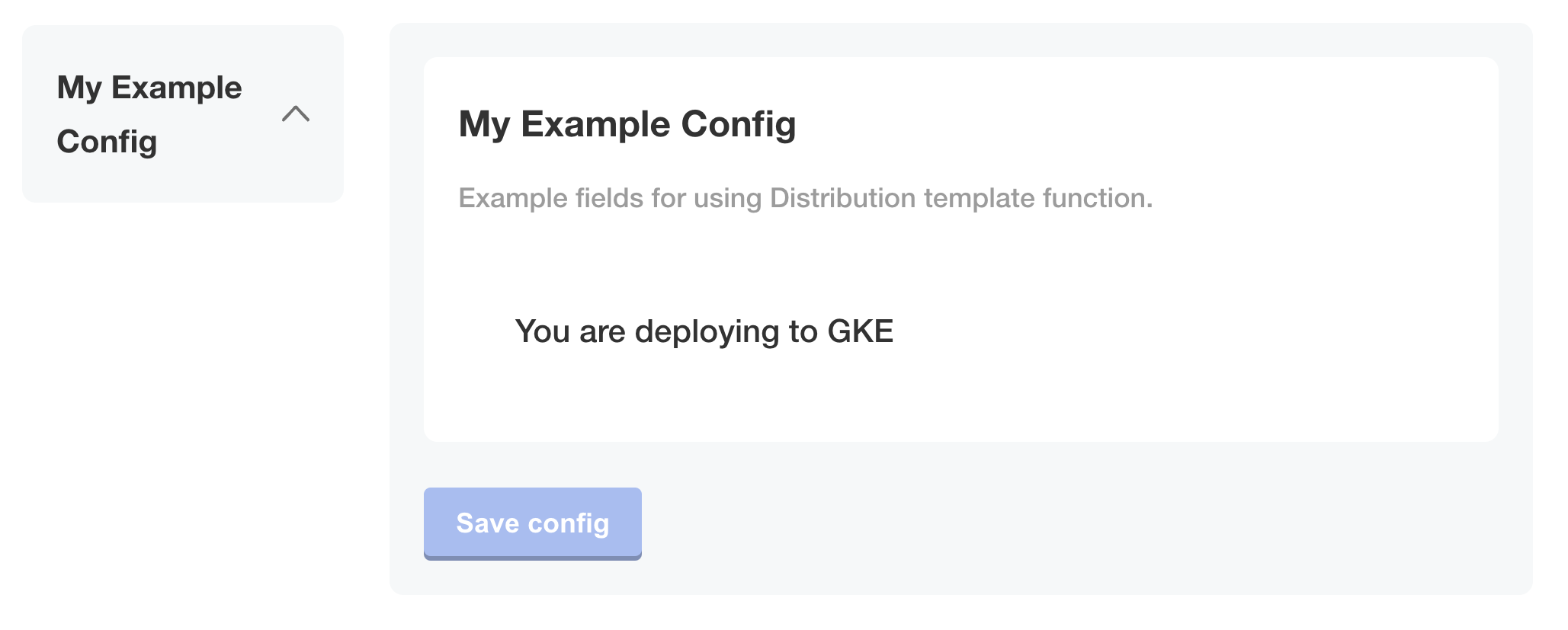
The following image shows how only the gke_distribution item appears on the app configuration screen:
Not equal to comparison
It can be useful to compare the rendered value of a Replicated template function against another value to check if the two values are different. For example, you can conditionally show certain fields only when the Kubernetes distribution of the cluster where the application runs is not Replicated Embedded Cluster.
In the following example, the ingress_type field appears on the configuration page only when the distribution of the cluster is not Replicated Embedded Cluster. This ensures that only users deploying to their own existing cluster are able to select the method for ingress.
The following example uses:
- Replicated Distribution template function to return the Kubernetes distribution of the cluster
- ne (not equal) Go binary operator to compare the rendered value of the Distribution template function to a string, then return
trueif the values are not equal to one another
apiVersion: kots.io/v1beta1
kind: Config
metadata:
  name: config
spec:
  groups:
  # Ingress settings
  - name: ingress_settings
    title: Ingress Settings
    description: Configure Ingress
    items:
    - name: ingress_type
      title: Ingress Type
      help_text: |
        Select how traffic will ingress to the appliction.
      type: radio
      items:
      - name: ingress_controller
        title: Ingress Controller
      - name: load_balancer
        title: Load Balancer
      default: "ingress_controller"
      required: true
      when: 'repl{{ ne Distribution "embedded-cluster" }}'
  # Database settings
  - name: database_settings
    title: Database
    items:
    - name: postgres_type
      help_text: Would you like to use an embedded postgres instance, or connect to an external instance that you manage?
      type: radio
      title: Postgres
      default: embedded_postgres
      items:
      - name: embedded_postgres
        title: Embedded Postgres
      - name: external_postgres
        title: External Postgres
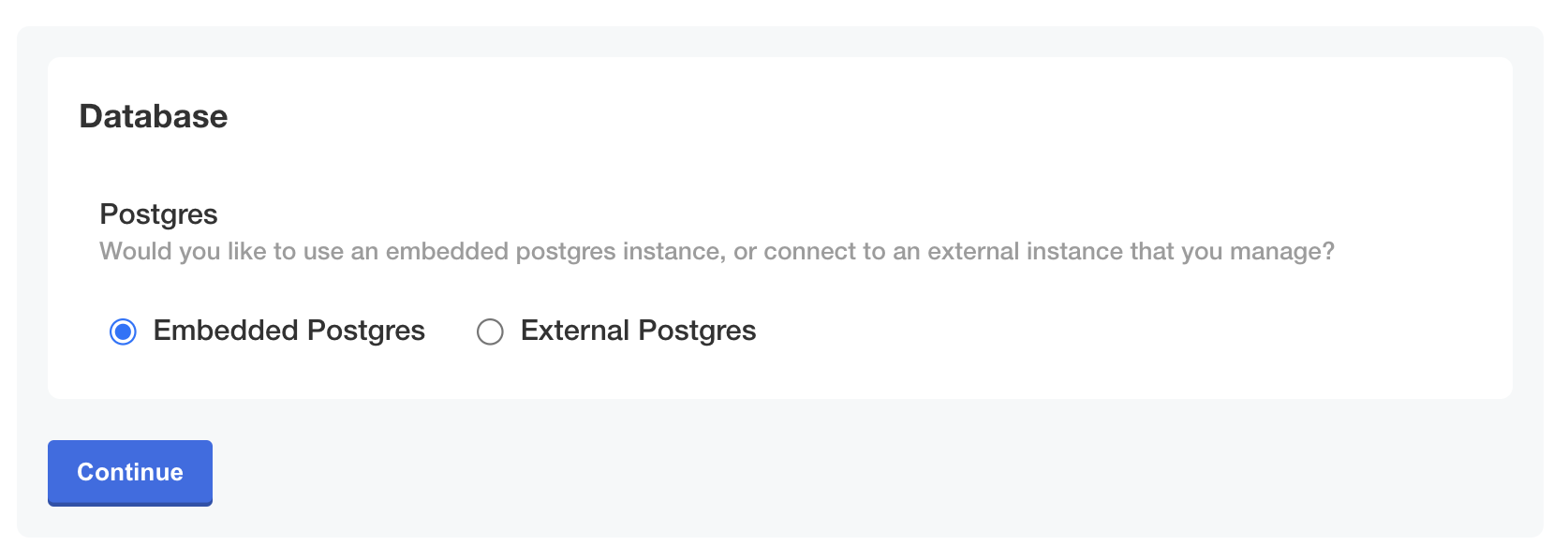
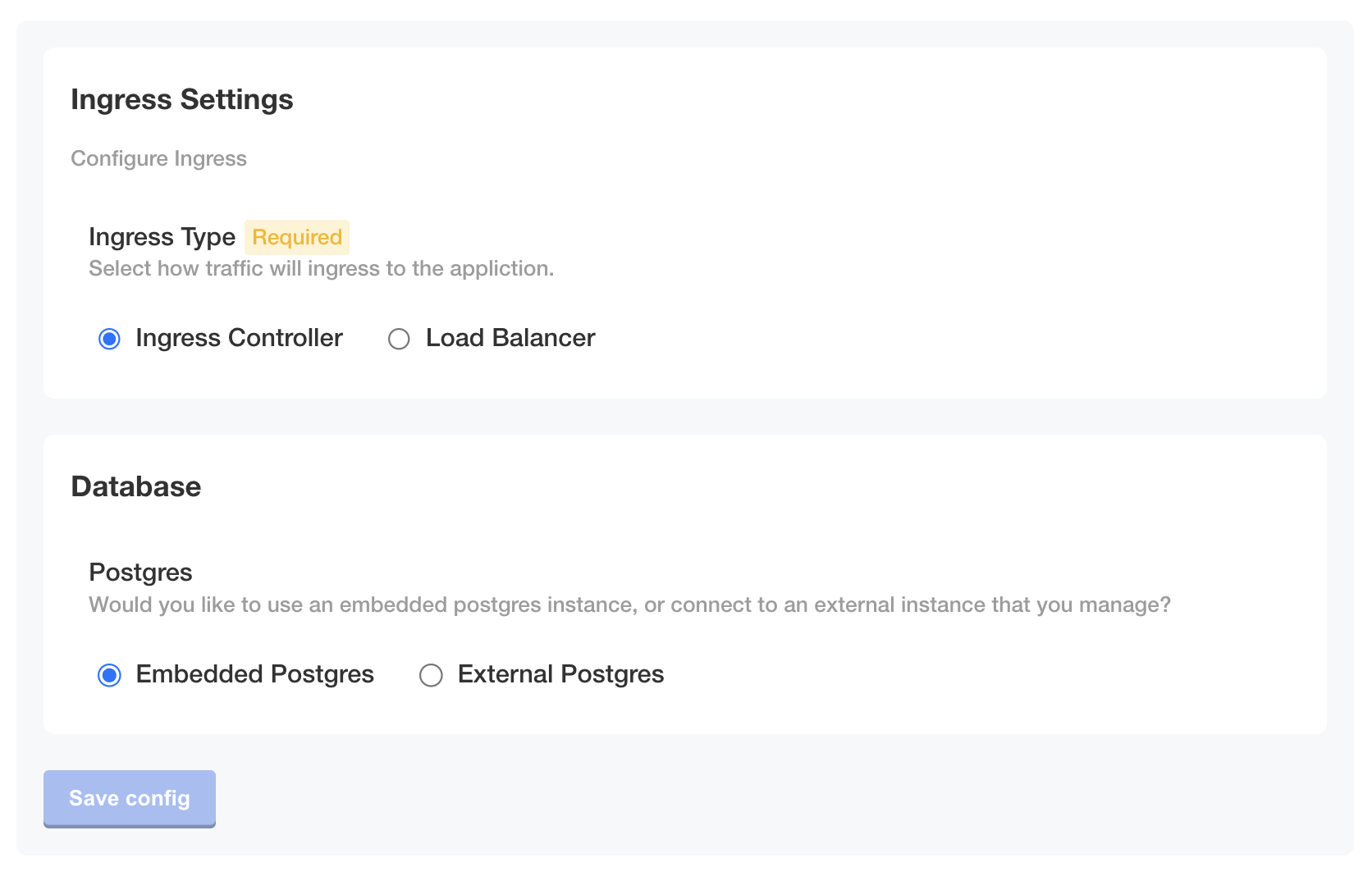
The following image shows how the ingress_type field does not appear when the distribution of the cluster is embedded-cluster. Only the postgres_type item appears:
View a larger version of this image
Conversely, when the distribution of the cluster is not embedded-cluster, both fields appear:
View a larger version of this image
Logical AND comparison
Logical comparisons such as AND, OR, and NOT work with Replicated template functions. A common use case for logical AND comparisons is to construct more complex conditional statements where two different conditions must both be true.
The following example shows how to use an and operator that evaluates to true
when two different configuration options are both enabled.
This example uses the Replicated
ConfigOptionEquals template function
to return a boolean that evaluates to true if the configuration option value is equal to the supplied value.
# Replicated Config custom resource
apiVersion: kots.io/v1beta1
kind: Config
metadata:
  name: config-sample
spec:
  groups:
  - name: example_group
    title: Example Config
    items:
    - name: radio_example
      title: Select One Example
      type: radio
      items:
      - name: option_one
        title: Option One
      - name: option_two
        title: Option Two
    - name: boolean_example
      title: Boolean Example
      type: bool
      default: "0"
    - name: conditional_item
      title: Conditional Item
      type: text
      # Display this item only when *both* specified config options are enabled
      when: repl{{ and (ConfigOptionEquals "radio_example" "option_one") (ConfigOptionEquals "boolean_example" "1")}}
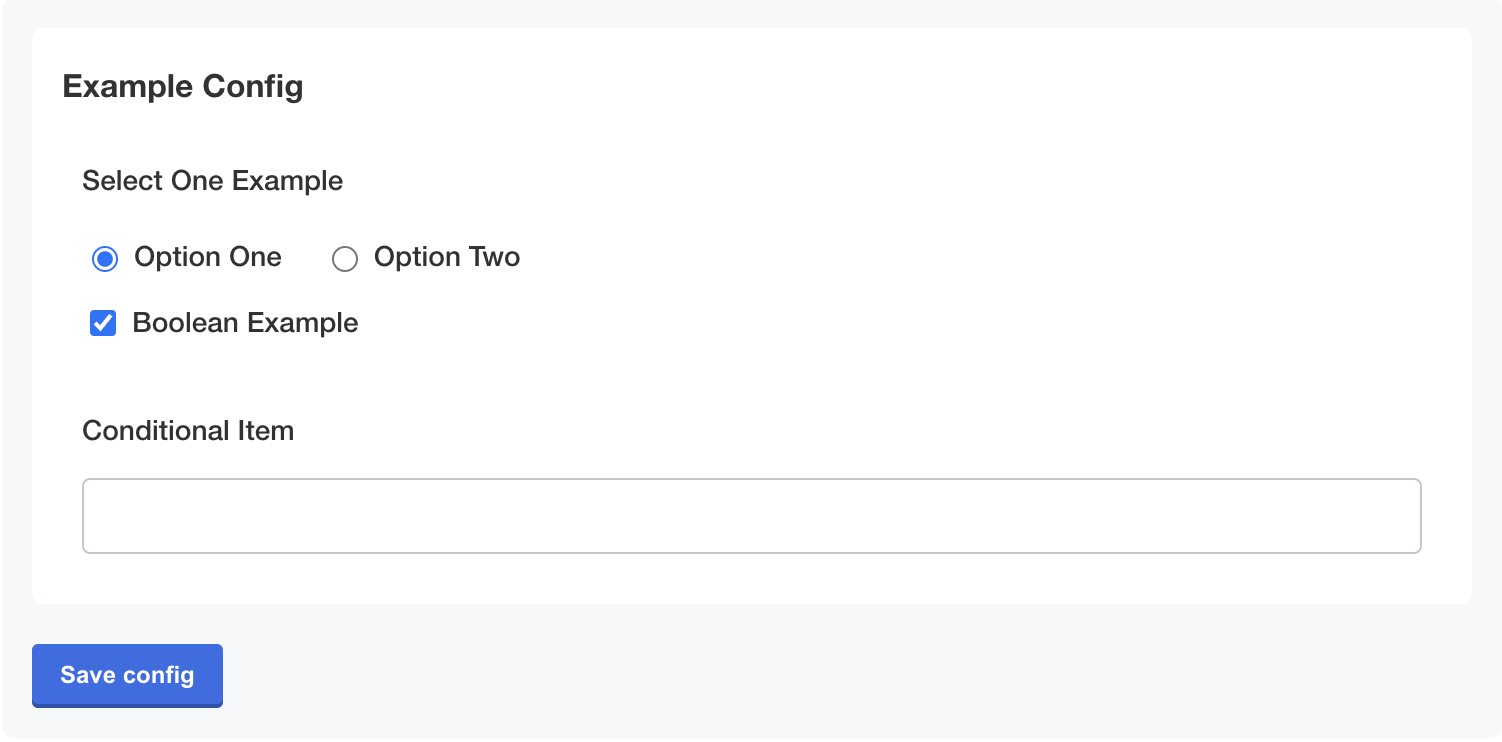
As shown in the following image,
when the user selects both Option One and Boolean Example,
the conditional statement evaluates to true and the Conditional Item field appears:
View a larger version of this image
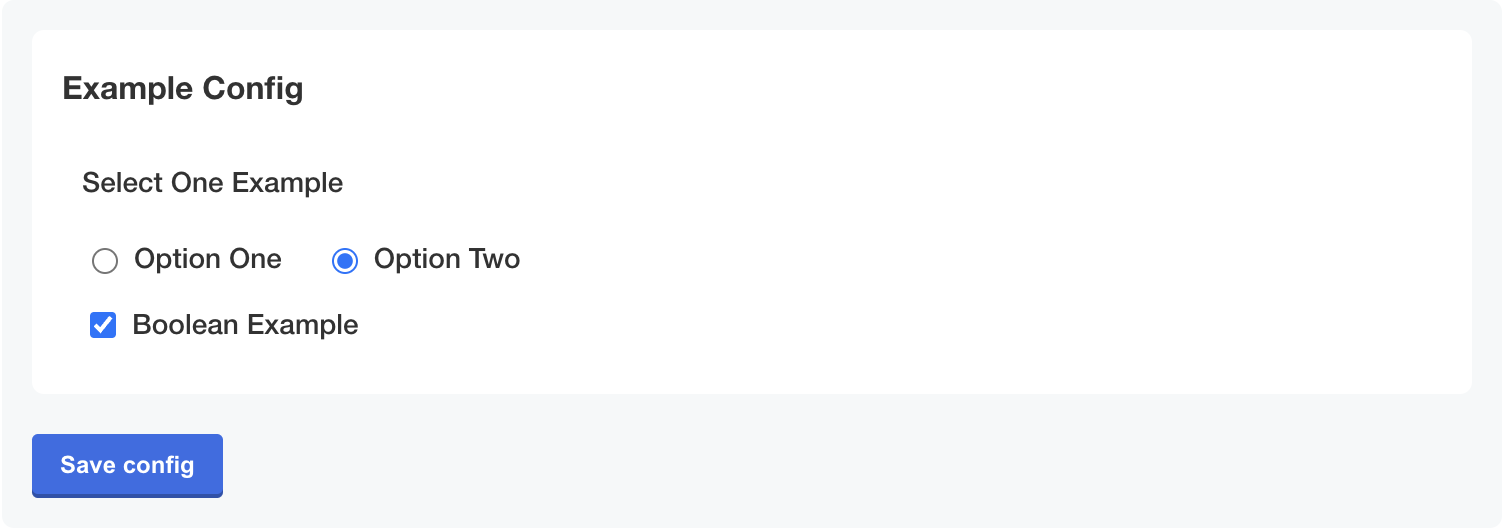
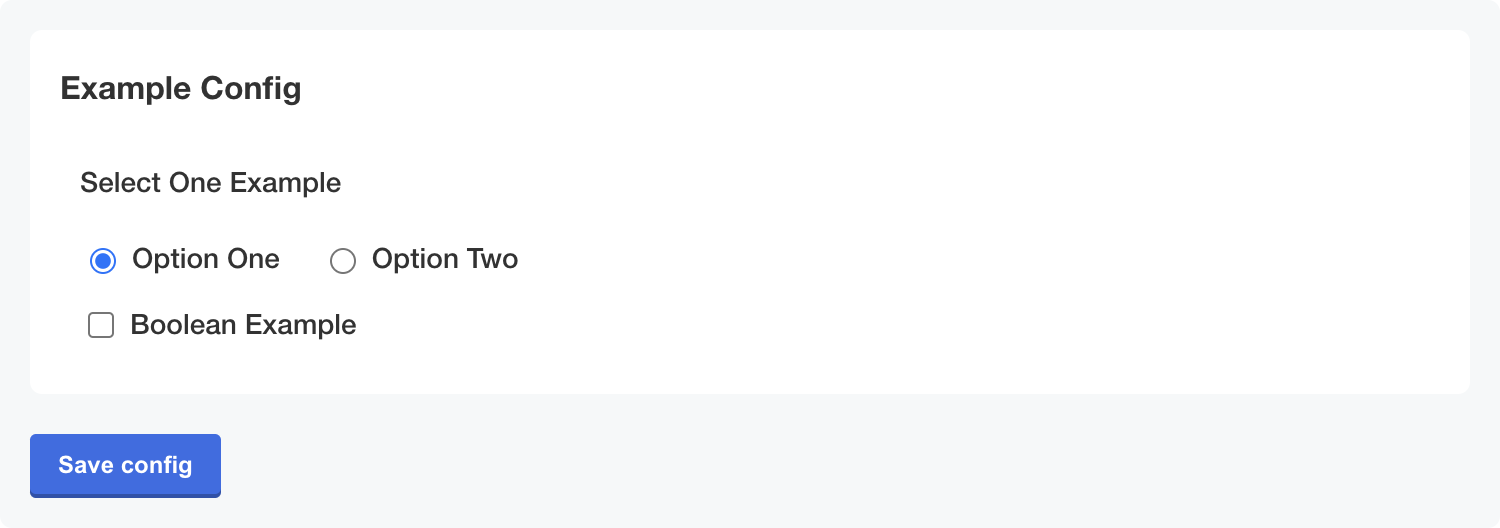
Alternatively,
if either Option One or Boolean Example is not selected,
then the conditional statement evaluates to false and the Conditional Item field is not displayed:
View a larger version of this image
View a larger version of this image
Conditional statement examples
This section includes examples of using Replicated template functions to construct conditional statements. Use conditional statements with Replicated template functions to render different values depending on a given condition.
If-else statements
A common use case for if-else statements is to conditionally set values for application resources or objects, such as custom annotations or service types.
For more complex or nested if-else statements,
use templating in your Helm chart templates instead of in the Replicated HelmChart custom resource.
For more information, see If/Else
in the Helm documentation.
For most use cases, use single-line formatting for if-else statements. Multi-line formatting can be useful to improve the readability of YAML files for longer or more complex if-else statements.
You can construct multi-line if-else statements using YAML block scalars and block chomping characters to ensure the rendered result is valid YAML:
- Use the greater than (
>) character for a folded block scalar style. With the folded style, Go treats single line breaks in the string as a space. - Use the block chomping minus (
-) character to remove all the line breaks at the end of a string.
For more information about working with these characters, see Block Style Productions in the YAML documentation.
The following example shows if-else statements in the Replicated HelmChart custom resource values field.
The statements render different values depending on whether the user selects a load balancer or an ingress controller
as the ingress type.
This example uses the Replicated
ConfigOptionEquals template function
to return a boolean that evaluates to true if the configuration option value is equal to the supplied value.
# Replicated HelmChart custom resource
apiVersion: kots.io/v1beta2
kind: HelmChart
metadata:
  name: my-app
spec:
  chart:
    name: my-app
    chartVersion: 0.23.0
  values:
    services:
      my-service:
        enabled: true
        appName: ["my-app"]
        # Render the service type based on the user's selection
        # '{{repl ...}}' syntax is used for `type` to improve readability of the if-else statement and render a string
        type: '{{repl if ConfigOptionEquals "ingress_type" "load_balancer" }}LoadBalancer{{repl else }}ClusterIP{{repl end }}'
        ports:
          http:
            enabled: true
            # Render the HTTP port for the service depending on the user's selection
            # repl{{ ... }} syntax is used for `port` to render an integer value
            port: repl{{ if ConfigOptionEquals "ingress_type" "load_balancer" }}repl{{ ConfigOption "load_balancer_port" }}repl{{ else }}8081repl{{ end }}
            protocol: HTTP
            targetPort: 8081
Ternary operators
Ternary operators are useful for templating strings where certain values must render differently based on a condition. They work best when you need to render a small portion of a string conditionally, rather than choosing between entirely different values. For example, you could use ternary operators to template the path to an image repository based on user-supplied values.
The following example uses ternary operators to render the registry and repository for a private nginx image. The rendered value depends on whether the customer uses a local image registry. This example uses the following Replicated template functions:
- HasLocalRegistry to return true if the environment rewrites images to a local registry
- LocalRegistryHost to return the local registry host configured by the user
- LocalRegistryNamespace to return the local registry namespace configured by the user
# Replicated HelmChart custom resource
apiVersion: kots.io/v1beta2
kind: HelmChart
metadata:
  name: samplechart
spec:
  values:
    image:
      # If a local registry is configured, use the local registry host.
      # Otherwise, use proxy.replicated.com
      registry: repl{{ HasLocalRegistry | ternary LocalRegistryHost "proxy.replicated.com" }}
      # If a local registry is configured, use the local registry's namespace.
      # Otherwise, use proxy/my-app/quay.io/my-org
      repository: repl{{ HasLocalRegistry | ternary LocalRegistryNamespace "proxy/my-app/quay.io/my-org" }}/nginx
      tag: v1.0.1
Formatting examples
This section includes examples of how to format the rendered output of Replicated template functions.
In addition to the examples in this section, Replicated template functions in the Static context include several formatting options. These include converting strings to upper or lower case and trimming leading and trailing space characters. For more information, see Static Context.
Indentation
When using template functions within nested YAML, indent the rendered template functions correctly so that the YAML renders. A common use case for indentation is templating annotations in resource or object metadata based on user-supplied values.
The nindent function adds a new line to the beginning of the string and indents the string by a specified number of spaces.
The following example shows templating a Helm chart value that sets annotations for an Ingress object. This example uses the Replicated ConfigOption template function to return user-supplied annotations from the configuration screen in the Replicated installer UI. It also uses nindent to indent the rendered value ten spaces.
# Replicated HelmChart custom resource
apiVersion: kots.io/v1beta2
kind: HelmChart
metadata:
  name: myapp
spec:
  values:
    services:
      myservice:
        annotations: repl{{ ConfigOption "additional_annotations" | nindent 10 }}
Render quoted values
To wrap a rendered value in quotes,
you can pipe the result from Replicated template functions with the repl{{ ... }} syntax into quotes using | quote.
Or, you can use the '{{repl ... }}' syntax instead.
One use case for quoted values in YAML is when values include indicator characters.
In YAML, indicator characters (-, ?, :) have special semantics and require escaping when used in values.
For more information, see Indicator Charactors
in the YAML documentation.
Example with '{{repl ... }}' syntax
customTag: '{{repl ConfigOption "tag" }}'
Example with | quote
customTag: repl{{ ConfigOption "tag" | quote }}
The result for both examples is:
customTag: 'key: value'
Variables example
This section includes an example of using variables with Replicated template functions. For more information, see Variables in the Go documentation.
Using variables to generate TLS certificates in JSON
You can use the Sprig genCA and genSignedCert functions with Replicated template functions to generate certificate authorities (CAs) and signed certificates in JSON. One use case for this is to generate default CAs, certificates, and keys that users can override with their own values.
The Sprig genCA and
genSignedCert functions
require the subject's common name and the certificate's validity duration in days.
The genSignedCert function also requires the CA that will sign the certificate.
You can use variables and Replicated template functions
to provide the necessary parameters when calling these functions.
The following example shows how to use variables and Replicated template functions
in the default property of a hidden item.
The example passes parameters to the genCA and genSignedCert functions to generate a CA, certificate, and key.
It uses a hidden item (not displayed on the configuration screen) to generate the certificate chain.
In the Replicated Config custom resource,
you can only access variables from the same item where you declared them.
For this reason, hidden items are useful for evaluating complex templates.
This example uses the following:
- Replicated ConfigOption template function to render the user-supplied value for the ingress hostname. Pass this as a parameter to the genCA and genSignedCert functions
- Sprig genCA and genSignedCert functions to generate a CA and a certificate signed by the CA
- Sprig dict, set, and dig dictionary functions to create a dictionary with entries for both the CA and the certificate, then traverse the dictionary to return the values of the CA, certificate, and key.
- toJson and fromJson Sprig functions to encode the CA and certificate into a JSON string, then decode the JSON for the purpose of displaying the values on the configuration screen as defaults
Replicated treats default values as ephemeral. Replicated recalculates the following certificate chain each time you modify the application configuration. Before using this example with your application, be sure that your application can handle updating these parameters dynamically.
apiVersion: kots.io/v1beta1
kind: Config
metadata:
  name: config-sample
spec:
  groups:
    - name: example_settings
      title: My Example Config
      items:
        - name: ingress_hostname
          title: Ingress Hostname
          help_text: Enter a DNS hostname to use as the cert's CN.
          type: text
        - name: tls_json
          title: TLS JSON
          type: textarea
          hidden: true
          default: |-
            repl{{ $ca := genCA (ConfigOption "ingress_hostname") 365 }}
            repl{{ $tls := dict "ca" $ca }}
            repl{{ $cert := genSignedCert (ConfigOption "ingress_hostname") (list ) (list (ConfigOption "ingress_hostname")) 365 $ca }}
            repl{{ $_ := set $tls "cert" $cert }}
            repl{{ toJson $tls }}
        - name: tls_ca
          title: Signing Authority
          type: textarea
          default: repl{{ fromJson (ConfigOption "tls_json") | dig "ca" "Cert" "" }}
        - name: tls_cert
          title: TLS Cert
          type: textarea
          default: repl{{ fromJson (ConfigOption "tls_json") | dig "cert" "Cert" "" }}
        - name: tls_key
          title: TLS Key
          type: textarea
          default: repl{{ fromJson (ConfigOption "tls_json") | dig "cert" "Key" "" }}
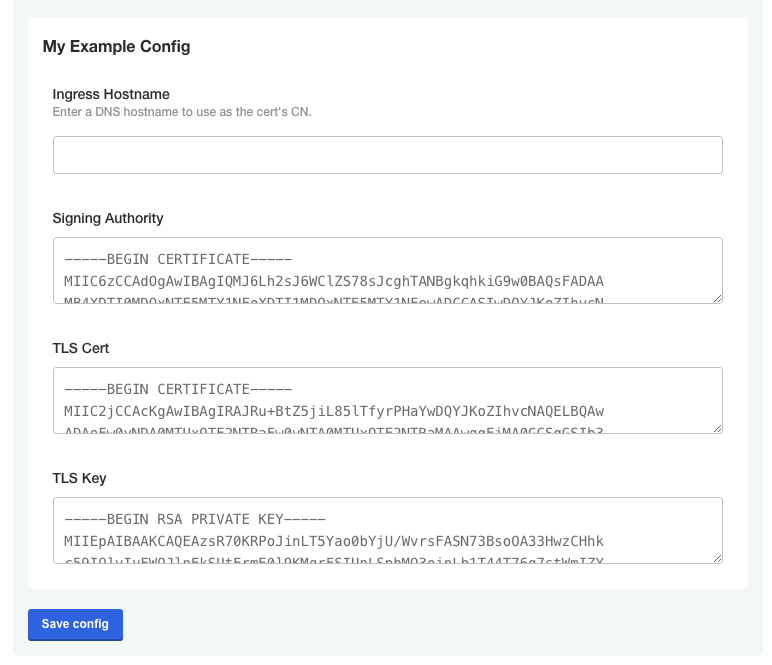
The following image shows how the default values for the CA, certificate, and key appear on the configuration screen: